 TEQENG
What Pro adds
| Home | Pro | |
|---|---|---|
| BitLocker drive encryption | No | Yes |
| Remote Desktop host | No | Yes |
| Hyper-V virtual machines | No | Yes |
| Group Policy | No | Yes |
| Games and everyday apps | Same | Same |
Steps
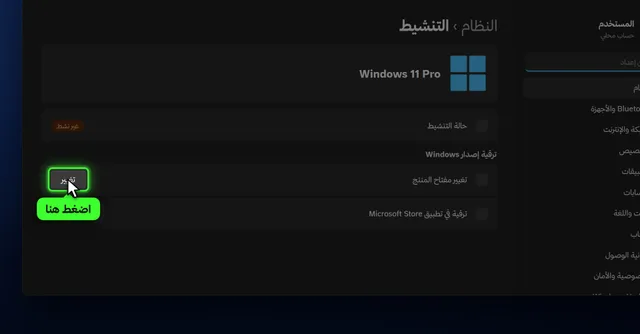
- Open Settings → System → Activation. Look for Upgrade your edition of Windows.
- Click Change next to Change product key.
- Paste your Windows 11 Pro key and click Next. Windows says it will upgrade the edition.
- Click Start and let the PC restart. Afterwards the Activation page shows Windows 11 Pro.
Before you start
- Make sure you have Windows 11 Home: Settings → System → About → Edition.
- The PC must be connected to the internet.
- Save open work, because the PC restarts at the last step.
What actually happens during the upgrade?
Windows 11 Home and Pro are the same system; Pro features are locked and the key unlocks them. That is why the upgrade does not download a full new copy: Windows checks the key online, enables the Pro features and restarts once or twice. Your apps, games, files and accounts stay where they are.
If you only use games, a browser and Office, Home is enough. Pro is useful if you need drive encryption, want to control the PC remotely, or run virtual machines.
If the Upgrade your edition option is missing
- Open Settings → System → Activation and scroll down; the option sits under Upgrade your edition of Windows.
- Or press Windows + R, type
ms-settings:activationand press Enter to open the Activation page directly. - If the PC belongs to a company or school (managed device), the administrator may have blocked edition upgrades.
After the upgrade: how to confirm
- Settings → System → About. Edition should read Windows 11 Pro.
- Settings → System → Activation. Activation state should be Active.
- Try a Pro feature. Search the Start menu for BitLocker or Remote Desktop; they should appear.
If you see error 0xC004F050 or the key does not match the edition, make sure you are entering a Pro key on a Home PC, and see activation errors and fixes.

Common questions
Is Pro faster for gaming?
No. Games and performance are the same on Home and Pro because the kernel and drivers are the same. What matters for games is the graphics card, processor, RAM and storage. If you only game, focus on hardware: see a budget gaming PC build.
When Pro is actually worth it
- A laptop with sensitive work files: BitLocker encrypts the drive, so a stolen laptop does not expose your files.
- Working on your home PC from elsewhere: Remote Desktop lets you sign in to it from another device.
- Developers and IT students: Hyper-V runs other systems inside Windows for testing.
- A work PC on a company network: joining a company domain requires Pro.
Does upgrading Home to Pro delete my files?
No. The upgrade from Settings keeps your files and apps; the PC just restarts.
Do I need a USB drive or a clean install?
No. Everything happens in Settings → System → Activation with a Pro key.
Can I go back to Home later?
Going from Pro back to Home requires reinstalling Windows Home, so make sure you need Pro first.
Do I need to back up or remove my apps?
You do not need to remove anything. A backup is good practice before any system change, but upgrading Home to Pro does not touch your files.
What if the key does not work?
Make sure the PC runs Home, the key is Pro, and you are online. If an error code appears, send it to us on WhatsApp or see activation errors and fixes. Our keys carry an activation warranty: if it fails on first activation we replace it or refund you.